Interactive Tools for 3Ds Max
Documentation: https://tinyurl.com/y6wqng2o
Gumroad Link: https://gumroad.com/l/aEPL
This is a collection of intuitive, context sensitive tools to improve productivity that I did to improve my workflow. These tools rely on mouse movement plus modifier keys to perform different actions without the need to use the UI or the dialogs.
They were developed and tested in 3Ds Max 2015, while they should work on every newer version bugs may be experienced in different versions.
I hope you find these tools useful and they help improve your modeling experience.
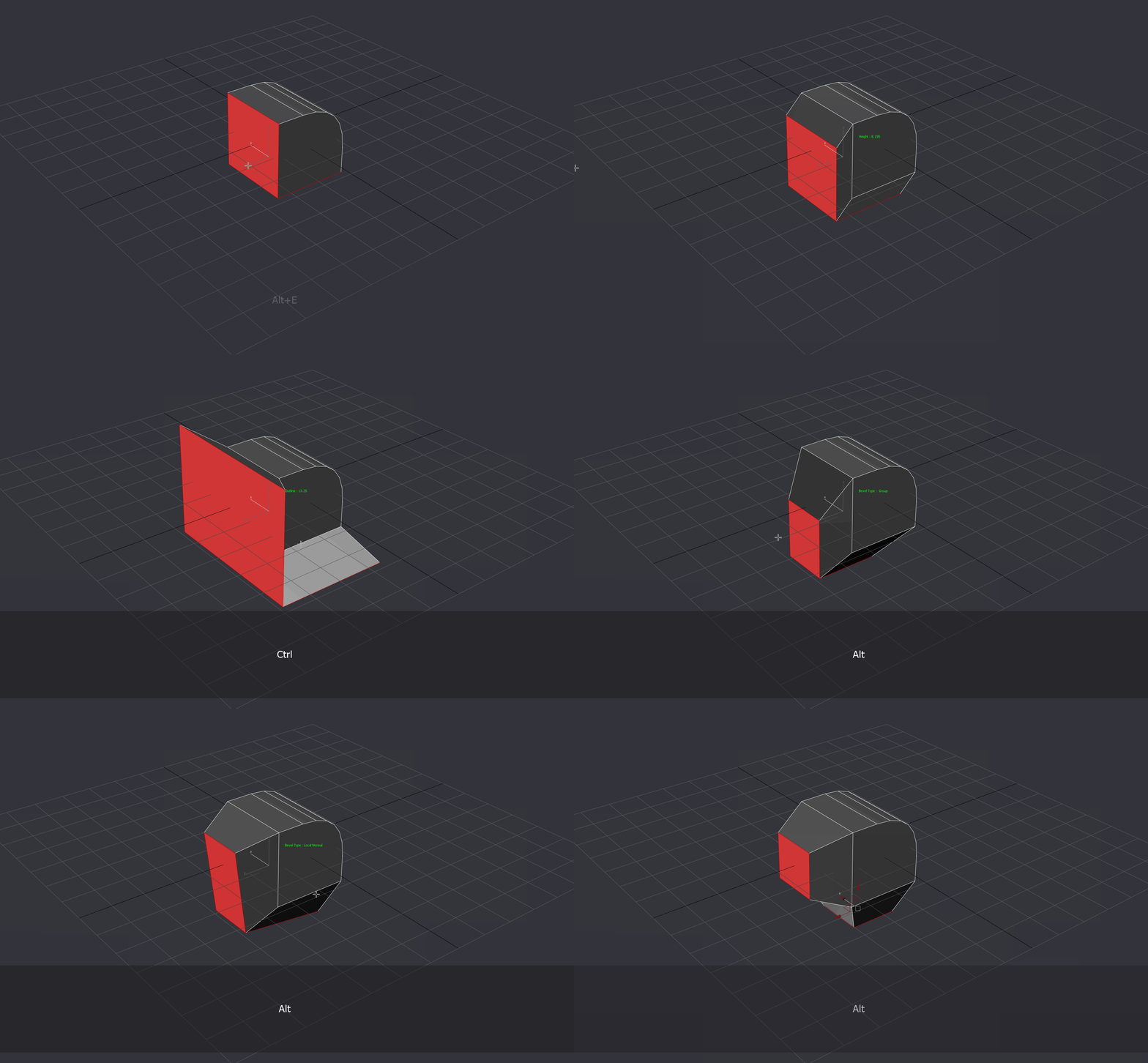
Bevel:
None: Height
Ctrl: Inset
Ctrl Shift: Inset, slower increase, snaps to 0 if value is < 0.2
Shift: Extrude slower increase, snaps to 0 if value is < 0.2
Alt: Modes
First Left Click: Start Tool
Left Click: Accept
Right Click: Cancel
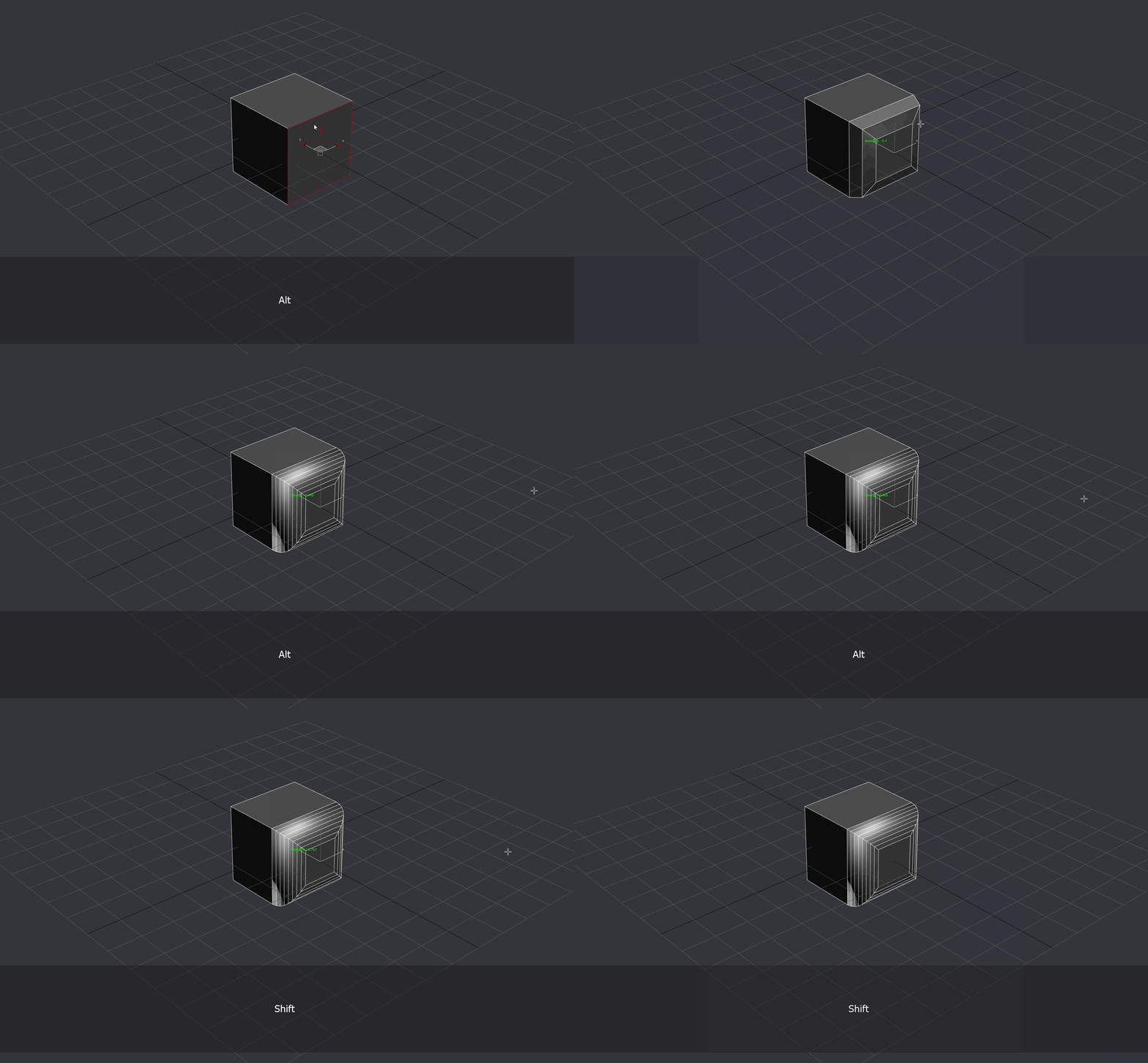
Chamfer:
None: Amount
Ctrl: Segments
Shift: Amount, slower increase
Alt: Tension
First Left Click: Start Tool
Left Click: Accept
Right Click: Cancel
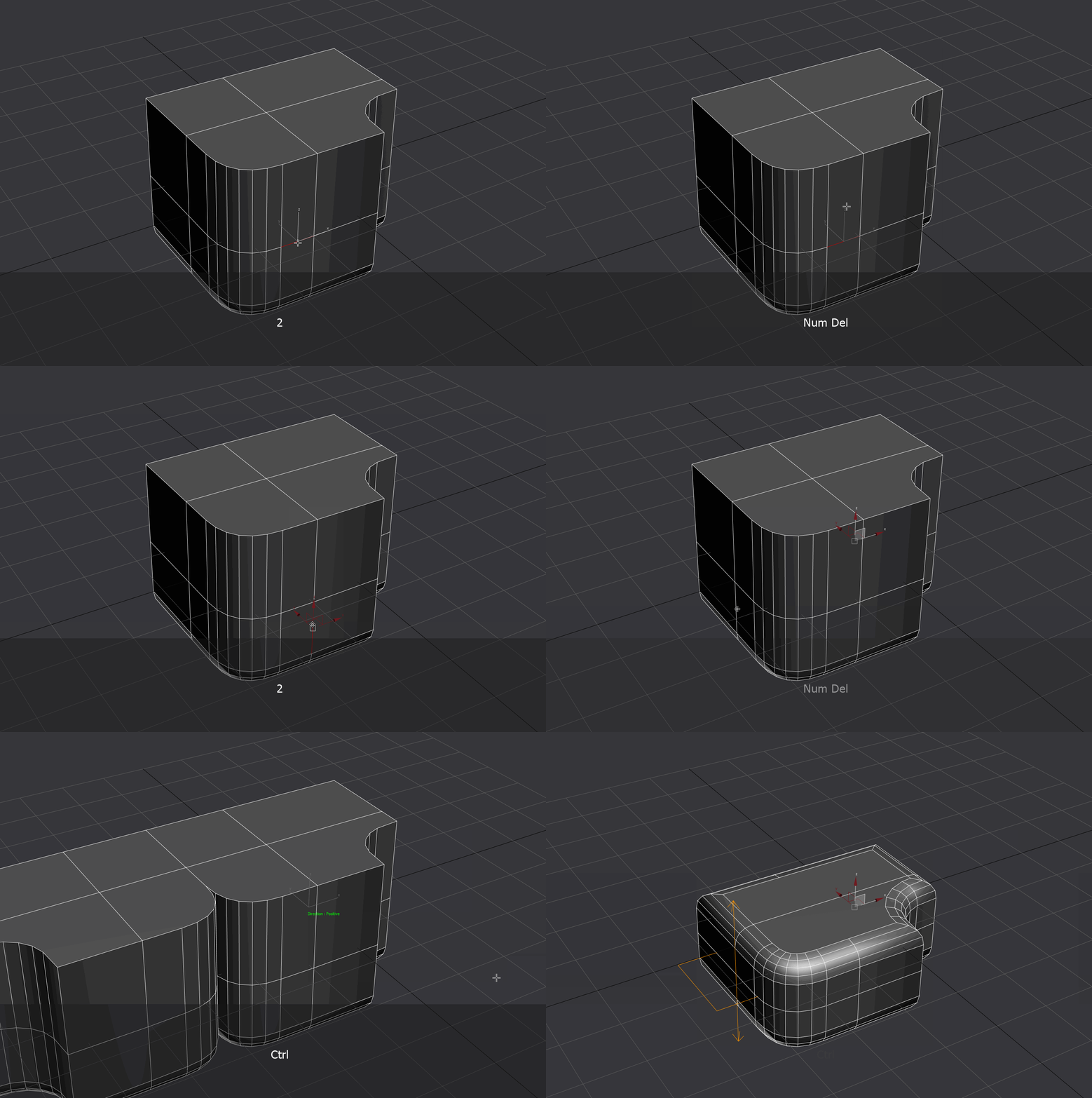
Interactive Symmetry Modifier:
If you have an edge or vert selection it will try to guess the direction and plane of the symmetry based on the distance of the selection
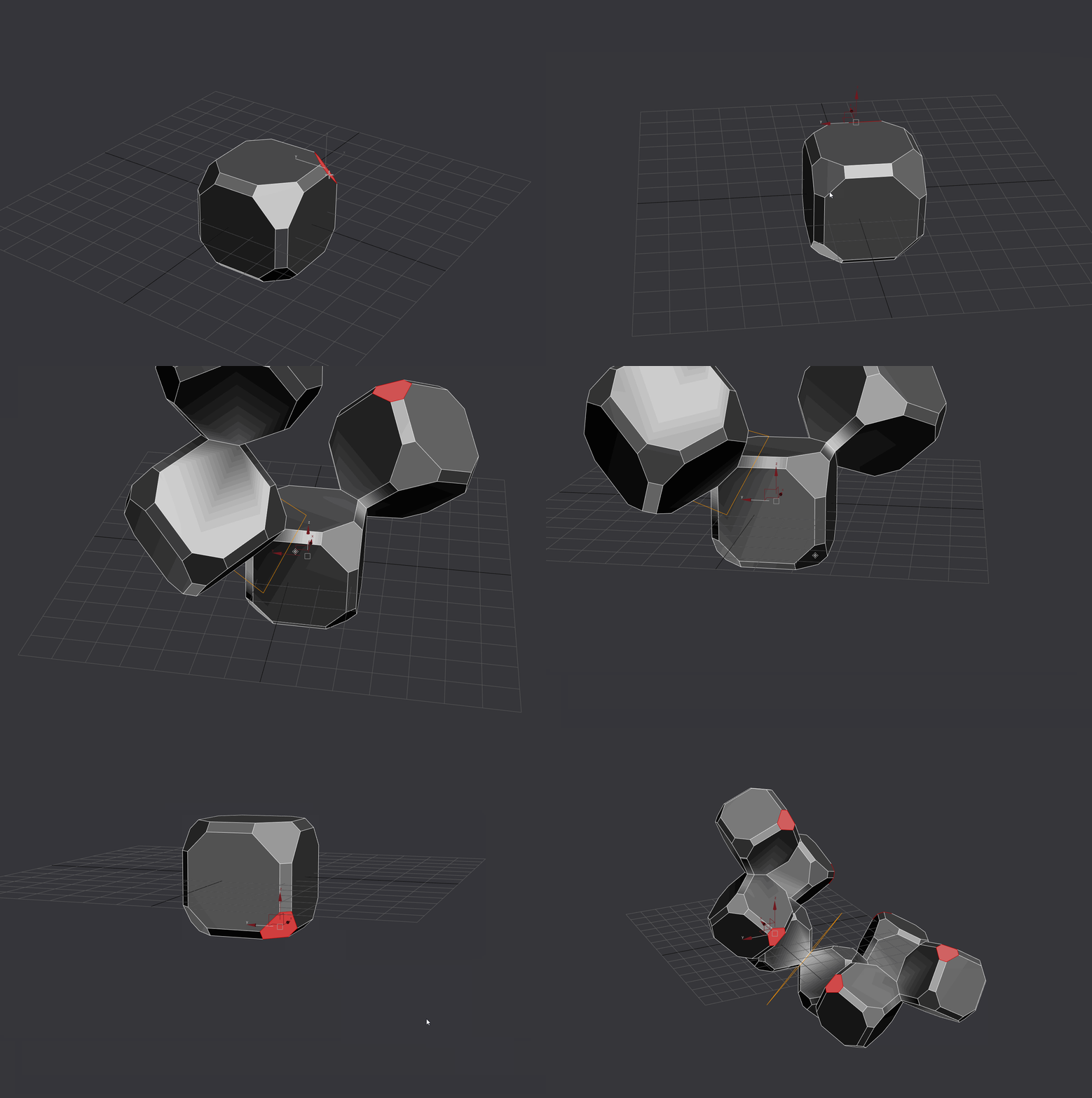
Interactive Symmetry Modifier:
If you select a face it will align the symmetry axis to the face normal.
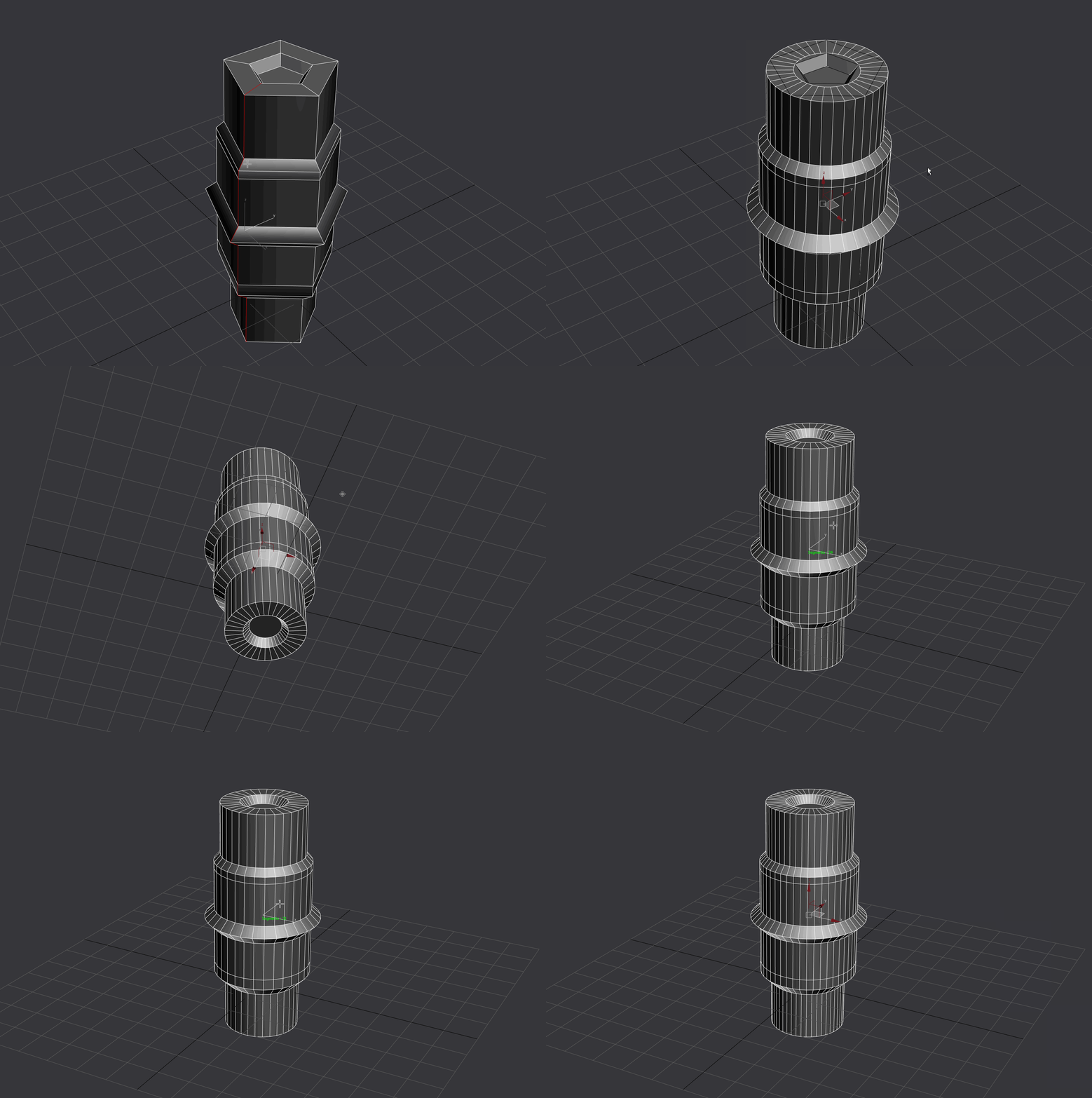
Interactive Set Cylindrical Sides:
Select a loop, run it and make a click to active the tool. It will try to guess the axis of the lathe for you.
Requires the pivot to be in the center of cylinder.
None: Segments
Shift: Segments + 2
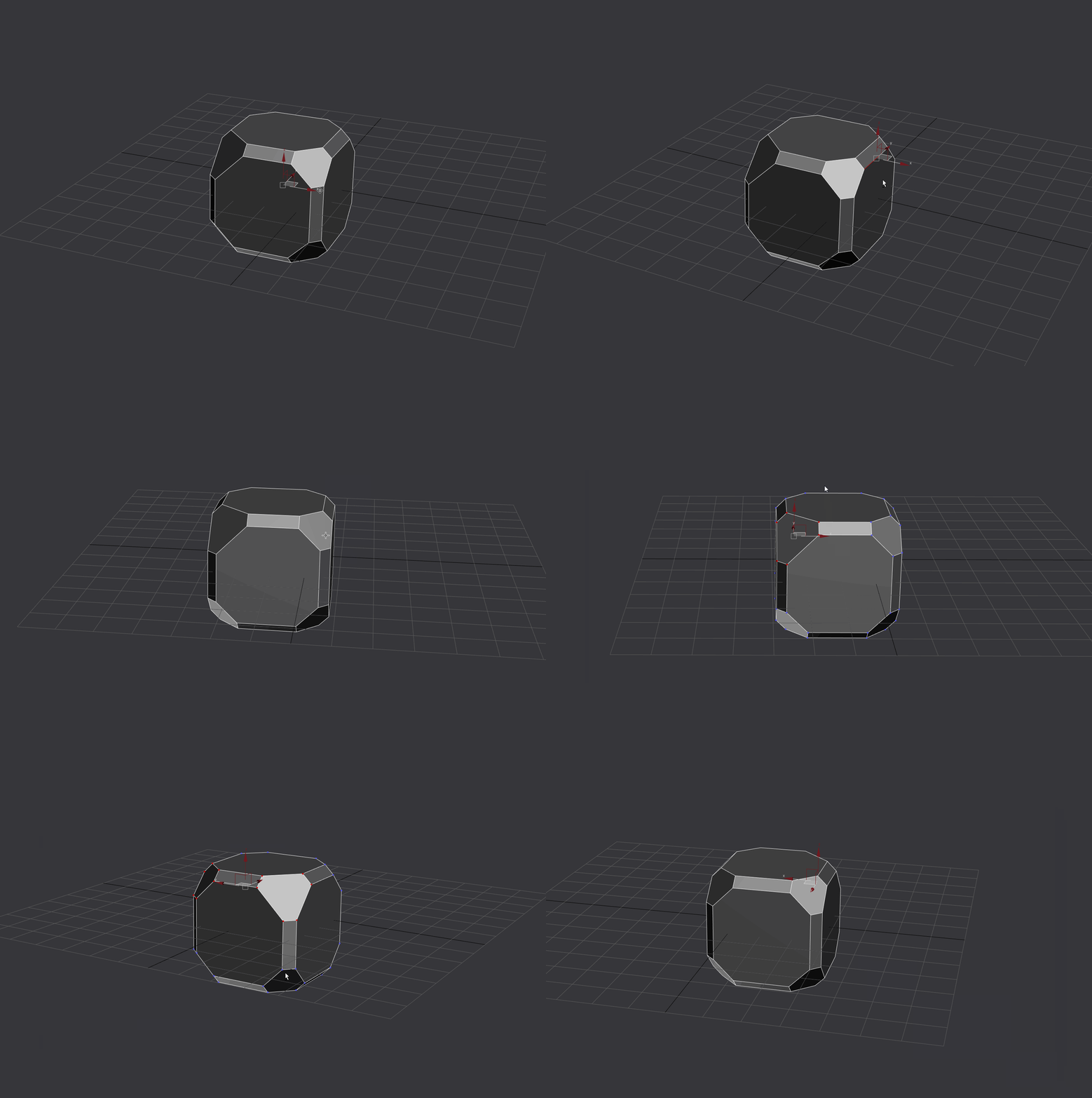
Smart Pivot:
Make a selection and run it, it will center the pivot to your selection.
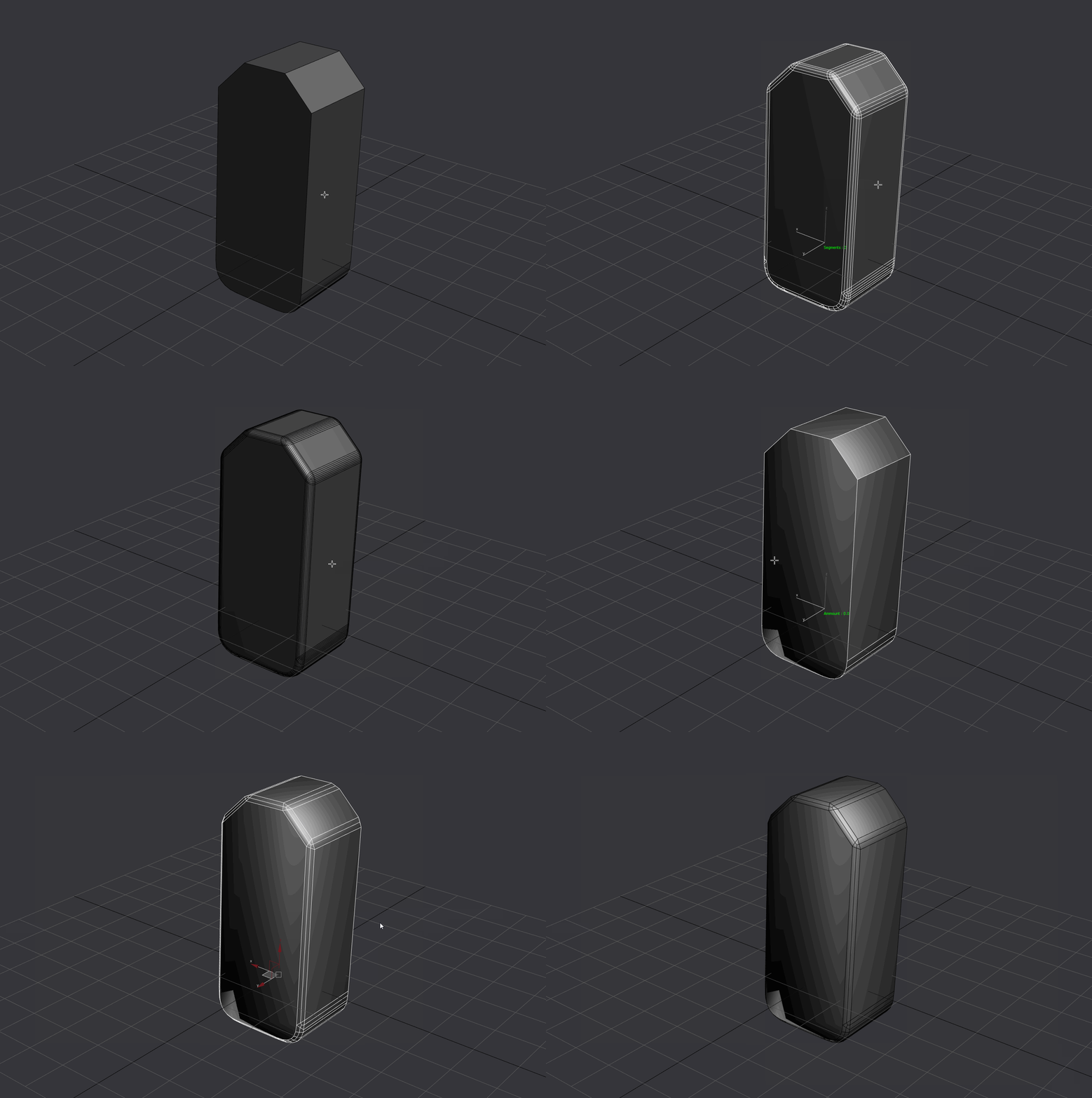
Interactive Quad Chamfer Modifier:
This requires the Quad Chamfer Modifier by Marius in order to work.
None: Amount
Ctrl: Segments
Shift: Amount, slower increase
Alt: Tension
First Left Click: Start Tool
Left Click: Accept
Right Click: Cancel
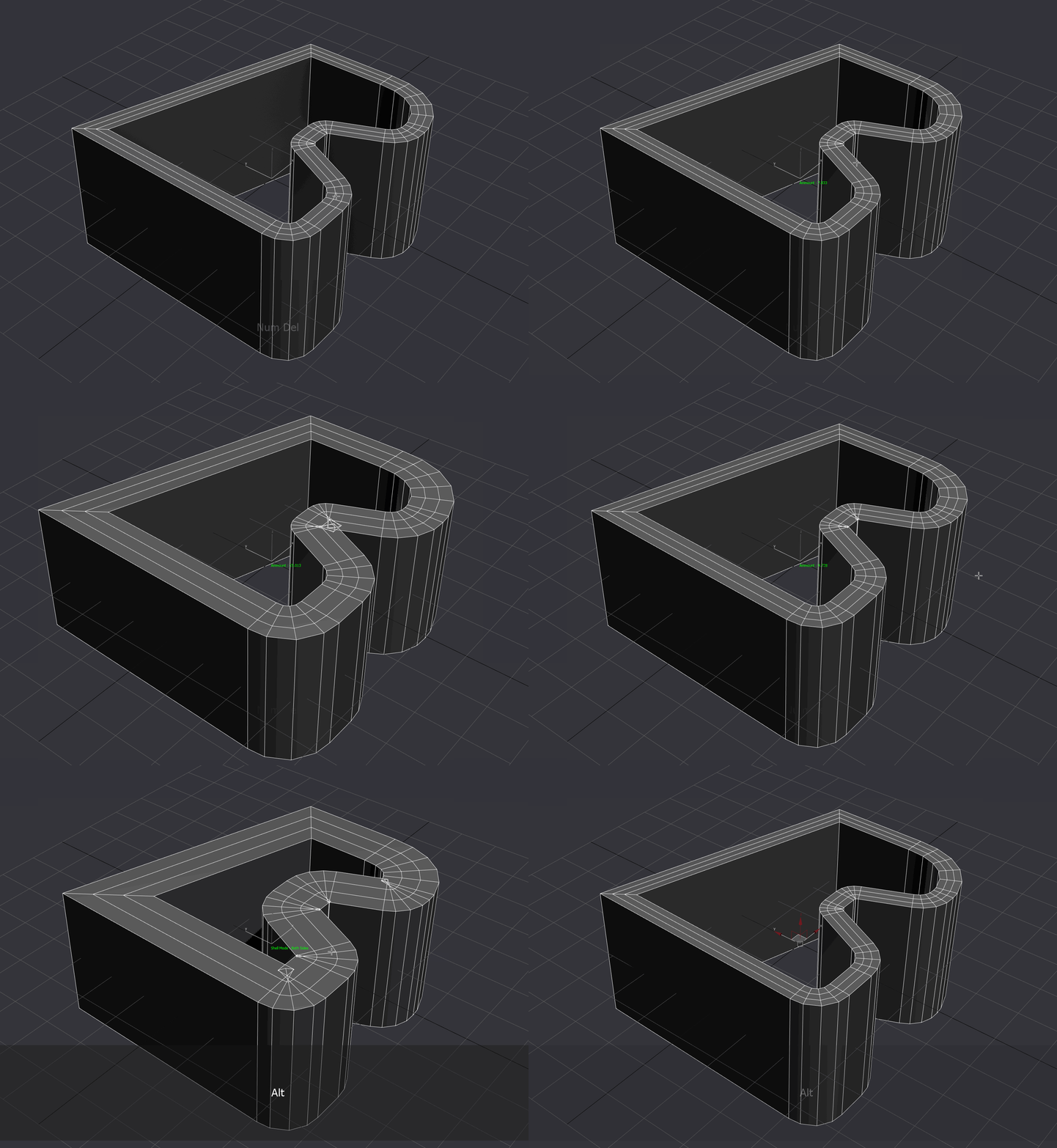
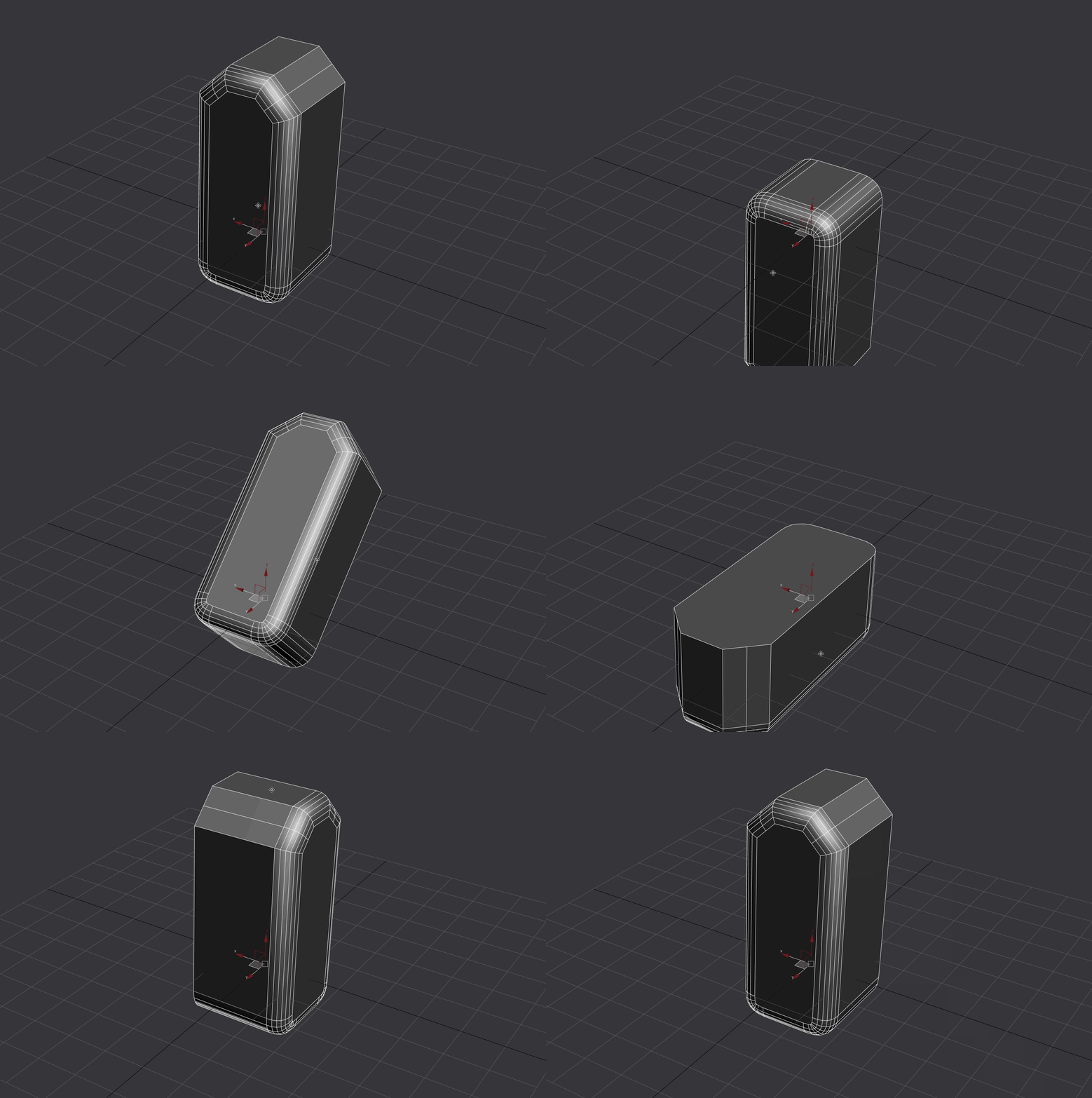
Interactive Shell Modifier:
None: Change Symmetry Axis
Shift: Slower Increment
Ctrl: Segments
Alt: Mode (Single/Double Sided)
Left Click: Accept
Right Click: Cancel
You can edit the results if you run the script again as it controls the modifier
Smart Rotate (Positive and Negative):
Works based on the direction of the normal under your cursor, rotating the object 45 degrees in the plane the object normal is pointing at. Only works for the X,Y and Z Plane.

Smart Align:
Works based on whats under your cursor when you run it. If you are close to an Axis It will center it to that axis. If there's an object under your cursor you can click it and the Align Dialog will pop up

Plane:
None: Divisions
Alt: -
Ctrl: Size
Shift: Size (lower increment)
Alt+ Ctrl + Click: Align to axis
First Left Click: Place object
Left Click: Accept
Right Click: Cancel
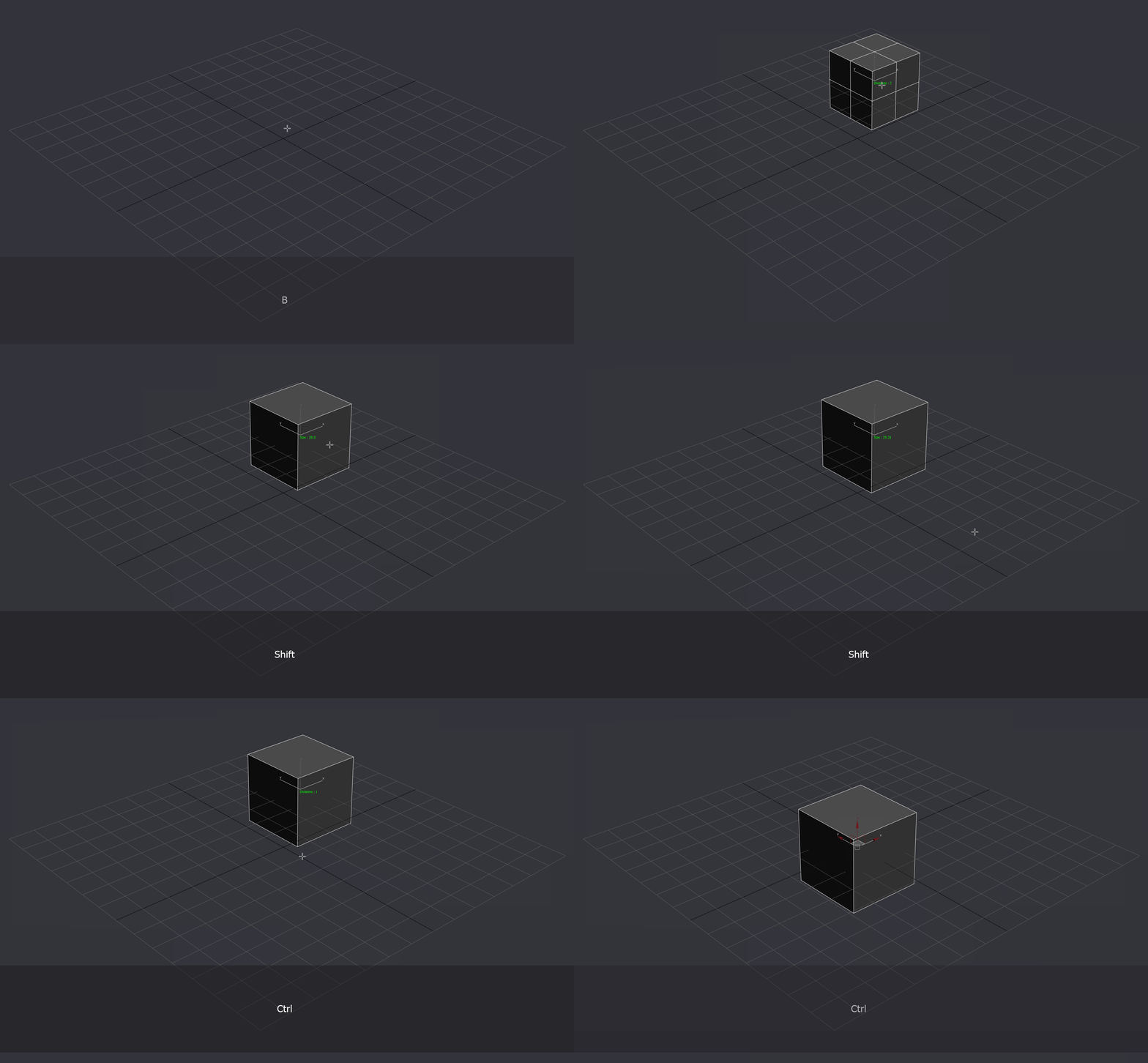
Box:
None: Divisions
Alt: -
Ctrl: Size
Shift: Size (lower increment)
Alt+ Ctrl + Click: Align to axis
First Left Click: Place object
Left Click: Accept
Right Click: Cancel
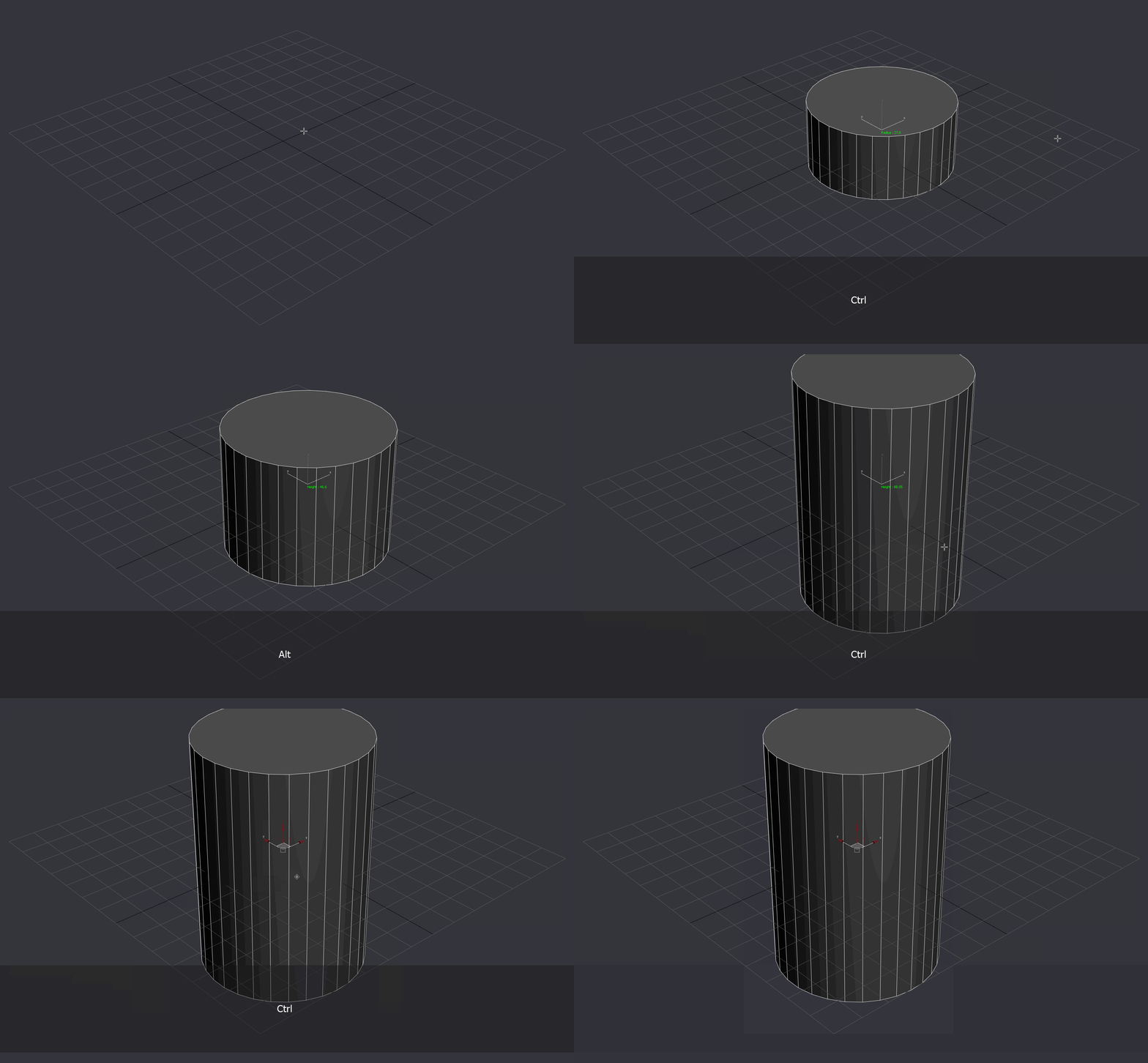
Cylinder Creation:
Nothing Pressed: Segments +1
Alt: Height
Ctrl: Radius
Shift: Segments +2
Alt+ Ctrl + Click: Align to axis
First Left Click: Place Obj
Left Click: Accept
Right Click: Cancel
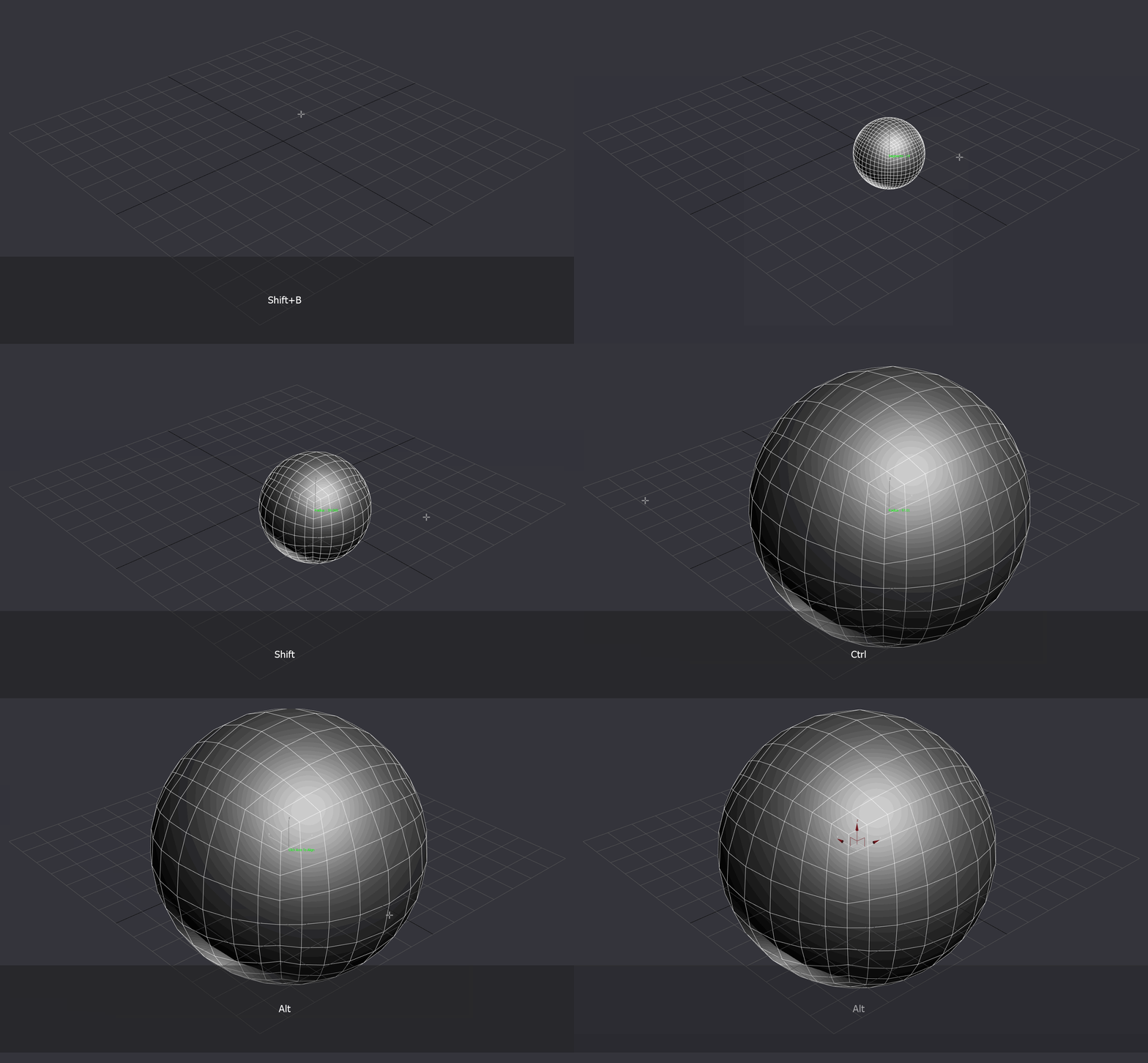
QuadSphere:
None: Segments
Ctrl: Size
Shift: Slower Size
Alt+ Ctrl + Click: Align to axis
First Left Click: Place Obj
Left Click: Accept
Right Click: Cancel